
On this page:
Tema 1 - Tema 2 - Related articles
Introduksjon
[screen recording]
Husk settings: Loop, mute, Hide controls, auto play
Tema 1:
Tekstesen
Tema 2:
Tekst tekstesen
Related articles:
Link 1
Link 2
!! skal dekke configure - properties menyen under company/asset
gammel tekst:
Configure properties
There can be equipment of any kind in Inspectio. Not all of these equipment need the same properties. Therefore we need to configure what properties are relevant for what equipment.
- To control this Inspectio uses labels
- Properties are hierarchical. Meaning: Assets inherit from company, company from Inspectio if enabled. Inherited properties are grey/pale.
- Properties used by only one asset should be a property on the asset and is in normal black text
- Go to either company or asset to configure properties depending on its origin.
- Drag & drop to reorder
- Enable or Disable the eye to hide the property from portal/app if not in use/not needed
Asset properties
- On asset select the arrow dropdown next to configure
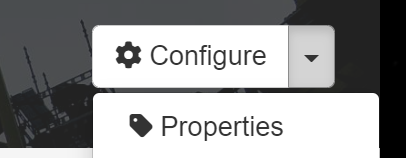
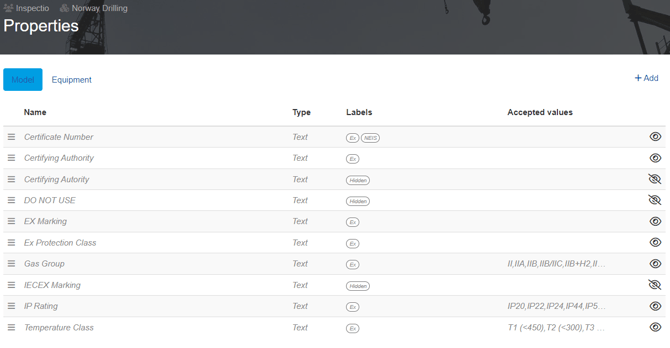
- First Model properties are listed. If grey they are inherited and cannot be changed on asset. Model properties are shareable information ea. information that is unique to a model on the asset.
There are a few labels named "hidden", these are to be ignored and will be removed, a tiny bit clutter after migration from 1.0 data.
- Select tab Equipment. It lists all equipment properties. Properties that are relevant for an equipment, non shareable information like serial, height installed etc.
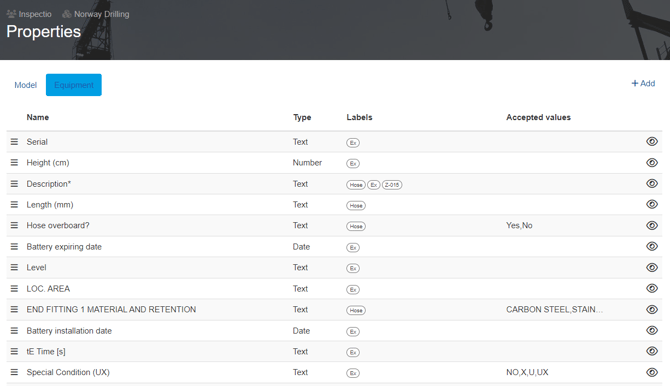
- To control what equipment gets what properties we need to configure the visibility on the properties correctly. Add label to mark what equipment type that uses this property. As shown above.
- Edit a property by clicking it.
- Drag and drop properties to adjust the view sequence. As listed is as shown in app. Remember, list is labeled so any MCT listed above EX properties will not show for EX equipment etc. Hence you can order your property list in sequence by equipment types to make it tidy.
- Delete or convert a property from equipment to a model property via the edit dots.
If a property is deleted all data related to that property on the asset is also deleted. Therefore delete with caution. If any issues or doubt contact support@inspectio.no
- Name - Name displayed for the property
- Type - Input type of the property
- Visibility - Type of equipment the property is available on
- Accepted values - If used generates a dropdown of the list created in accepted values.
- Multi Select - Allows selecting multiple "Accepted values"
- Required - Required properties will notify app user that the property requires value.