
On this page:
Configuration
This article explains how to configure and use [feature]. You will learn how to set up [X], add [Y], and understand the available options.
[Screen recording] Loop, Mute, Hide Controls, Auto play
Artikkel...
Access:
Inspectors:
Competence:
Related articles:
Link 1
Link 2
Link 3
gammel tekst:
Inspectors
An inspector is a registered ID used to log in to the mobile app. That can either be an RFID or a credential login. This ID is given a name that in most cases should correspond to the name of the person who conducts the Inspections. This ID can be used to log in, even when offline. Since RFIDs are physical they can be lost, some persons might have multiple IDs registered.
So why cant I just log in to the app with my portal user?
The short answer to that is that such a login sequence needs internet, and that it would require Inspectors having a portal user. By using the separated Inspector approach we enable full usability and trackability in any offline use case.
Link your Inspectors to your portal user
A portal user is not required, but for repeat Inspectors we recommend creating an Operator user in the portal. On this user you can link your Inspector IDs and have oversight of all your different Inspector IDs. You can also have a link between a task performed by your Inspector to your profile page. This enables:
- Certainty that a task is performed by a verified user
- Overview of all Inspector IDs used by yourself
- Optional: Add competence documentation to your profile thereunder your Inspectors as well
Add an Inspector:
Admins can add Inspector on any user.
Operators can add Inspector on its own users.
Guests cannot add nor see Inspector list.
If a user changes its role, then the Inspector list is hidden/shown according to the permission rules. A linked Inspector is not unlinked until it is manually unlinked in the Inspector list.
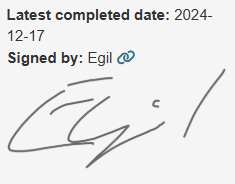
Find link icon on a task: Example is not linked, hence the broken icon🪢. Click the broken link icon to copy the inspector ID.
Paste the inspector ID in the corresponding profile.
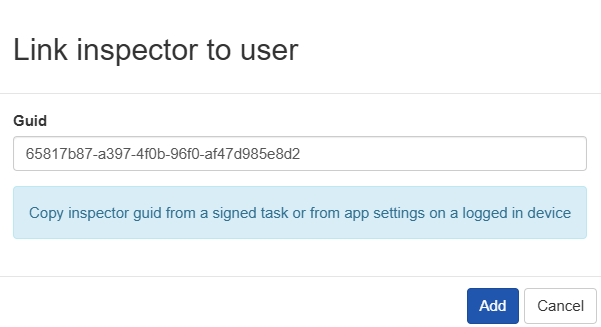
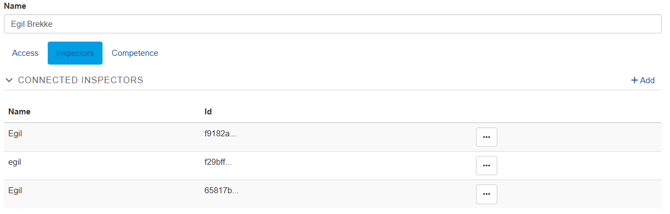
Link is now created and task indicates a valid Inspector+Portal user link:
Other options to find your ID? In your app settings your logged in ID is available. Tap it to copy and past to a document/email etc. and add to your profile as shown above.
Competence
On your personal user profile you can add competence documents. Add a brief comment about what it is, and if applicable an expiration date. Then add your documents. By having competence on your profile, any Admin on client companies that you have worked on (have a share to) can see this competence and verify that you as a 3rd party Inspector is the person and have the competence you claim to have.
This feature only makes sense when having linked your personal Inspector IDs to your portal user profile.
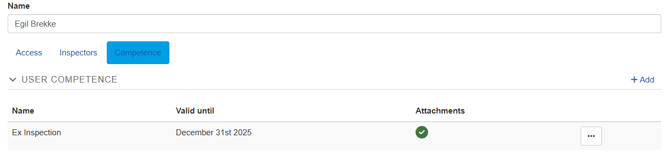
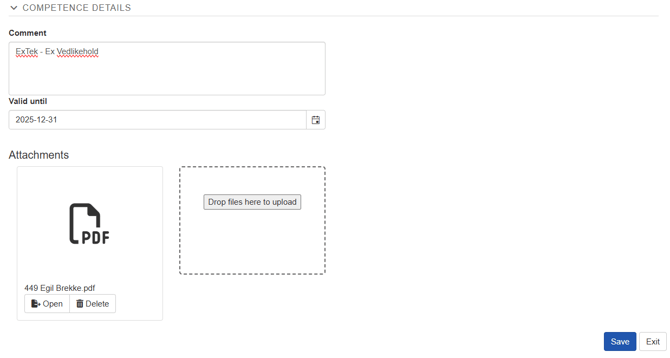
This feature is optional to use. Using it or not using it has no limitations or implications of rules related to competence or expired competence to the use of the mobile app or system in general.