
On this page:
Setting a  filter - Filter Types - Related articles
User Role: All
In your project task list you can set filters to include or exclude tasks. Refine your lists to pinpoint specific tasks to either make the task list more manageable for further review or export.
Setting a filter:
Filters can be set and combined using the filter button in the top left corner of your project task list. There are many different filter types and if not opted in to by clicking "not having" will filter based on the task's or the related equipment's information.
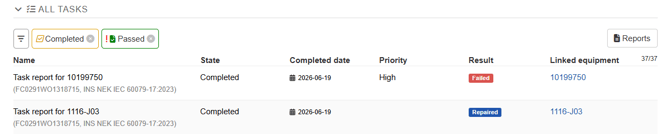 Example above shows a filter set to include completed tasks but exclude the result type:Passed.
Filter Types:
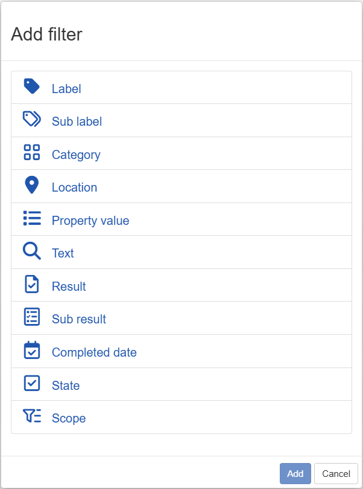
Label:
Setting a label filter will match selected label towards maintasks and associated equipment.
Sub Label
Sub label will match selected label towards subtasks.
Category
Category filtering enables filtering on equipment categories or "types".
Location
Filter based on equipment locations.
Property value
Filter based on a selected property and its value. Only available on properties with predefined selectable values.
Text
Freetext filtering matches towards all equipment information. Name, Identifiers and property values.
Result
Filter based on main task result.
Sub result
Filter based on sub task result.
Completed date
Filter on tasks completed on, before or after a selected date.
State
Filter based on task state.
Scope
Filter based on project scope.
Related articles: