On this page:
Sample Scope - Bulk Answer - Input Source - Apply label to task - Related articles
User Role: Admin
A project scope is a way to generate inspection tasks in inspectio.
[screen recording]
Husk settings: Loop, mute, Hide controls, auto play
Sample Scope:
if sampling is enabled you are able to add a sampling scope. A sampling scope is a way to generate tasks on a sample % of the equipment matching the filter in your scope.
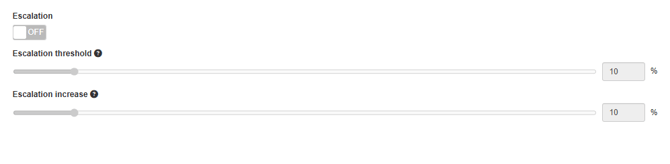
Another layer in a sample scope is escalation. If enabled you can set an escalation with a threshold and increase.
The threshold is the % amount of failed tasks the increase will take affect. Escalation increase is set in a % amount and determines the amount of tasks your sample size will increase if the threshold is met.
Bulk Answer:
If bulk answer is enabled on the scope the functionality of answer remaining is made available in the application. This functionality enables the app user to select a result for all unanswered tasks in the inspection.
Input Source:
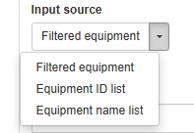
There are three different input types to a scope in inspectio. Filtered equipment starts out with the whole asset equipment database. Add your labels to include or exclude to filter your scope. From equipment ID or From equipment name is a way to copy name or inspectio ID lists directly into your scope.
From name or ID shares much of the same functionality. The validation results is based on either the equipment name or the inspectio equipment ID in the asset database.
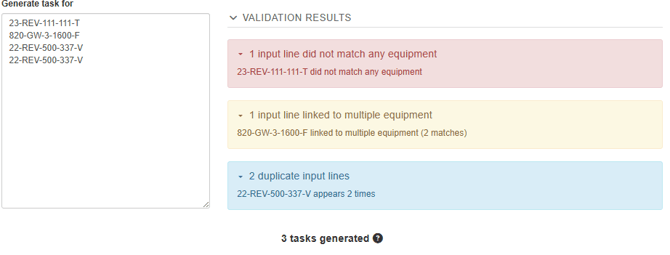
Red: X amount of input line(s) did not match any equipment. One or more equipment names or ID's does not have a matching references in the asset equipment database. These input lines will be removed from your input list and will not generate a task.
Yellow: X amount of input line(s) is linked to multiple equipment. One or more equipment names is linked to more than one equipment in the asset equipment database. This is only possible with from equipment name scopes. One task will be generated for each match.
Blue: X amount of duplicate input lines. One or more equipment names or ID's has multiple occurrences in your input lines. Only one task will be generated.
Filtered equipment is as mentioned a way to filter your scope using labels.
All: The equipment in your scope must have all the labels to be a part of your scope.
Any: The equipment in your scope must have any(one or more) of the labels to be a part of your scope.
Exclude: If the equipment has any(one or more) of the labels it will be excluded from your scope.
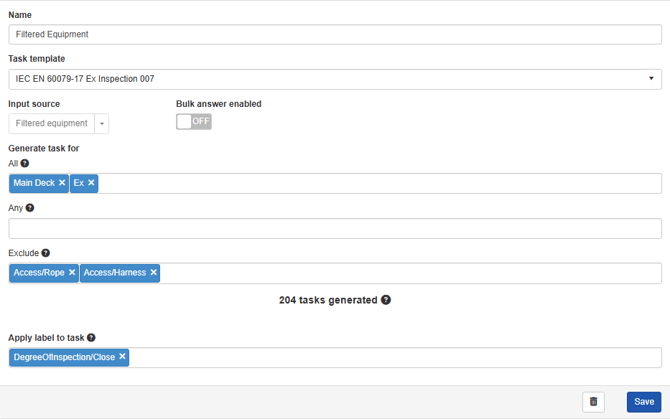
Apply label to task :
Labels added in this field will be added to your tasks. You are only able to select from your task labels.S
Generated tasks: is a counter found at the bottom part of any scope you create. ID and Name scopes will update according to your input and validation. Filtered equipment scopes will dynamically update, as they represent the amount of equipment matched by the filter made, and can change according to the labels added or removed from the equipment in your database.
Related articles:
Link 1
Link 2